Documentation
Installation and configuration guide for the Product Badges plugin for nopCommerce 4.90.
Installation
-
Upload the plugin
In the admin area go to
Configuration → Local pluginsand pressUpload plugin or theme. Choose theWidgets.ProductBadges.zipfile.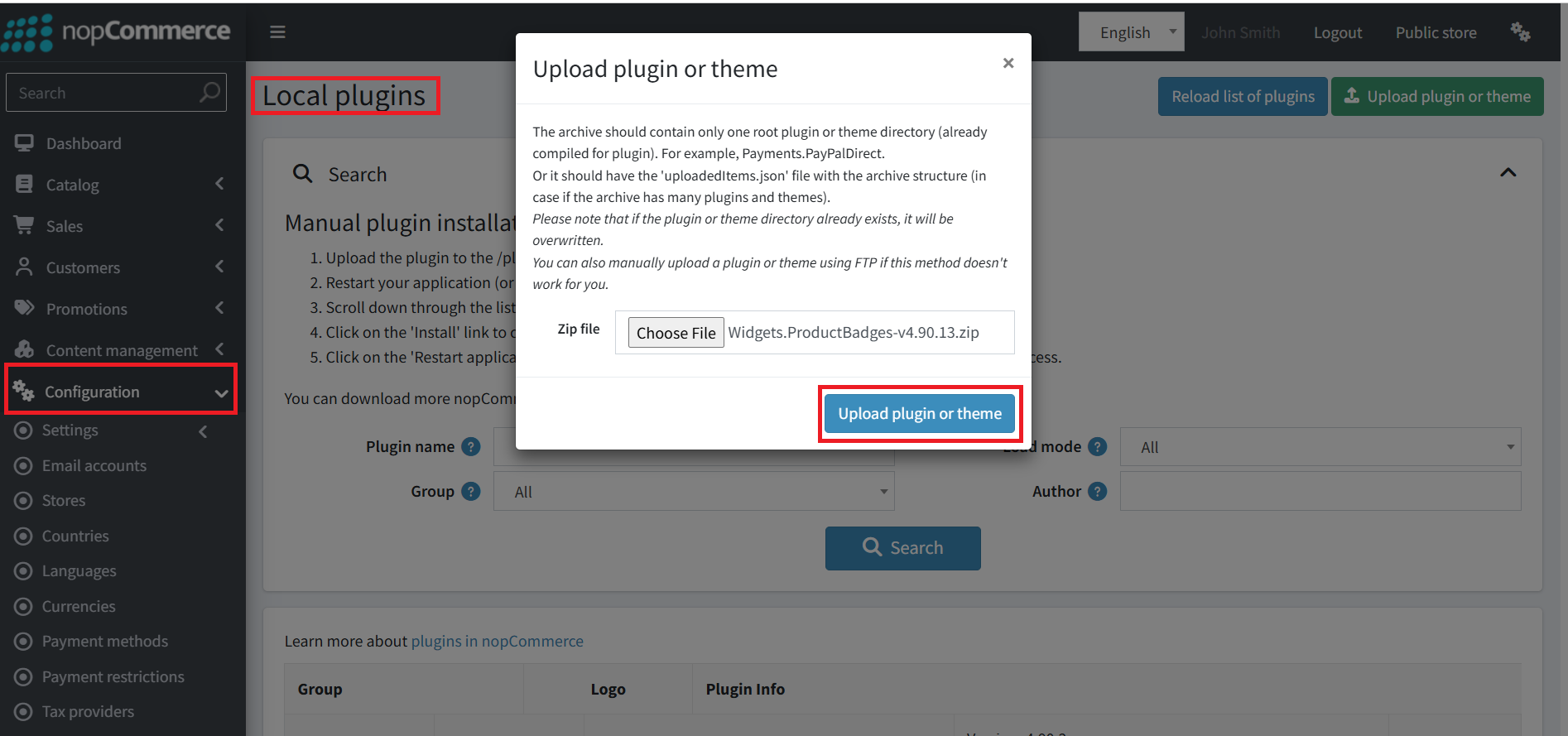
-
Install the plugin
Find “Product Badges” in the list and press
Install. This creates the badge tables, settings and localization resources.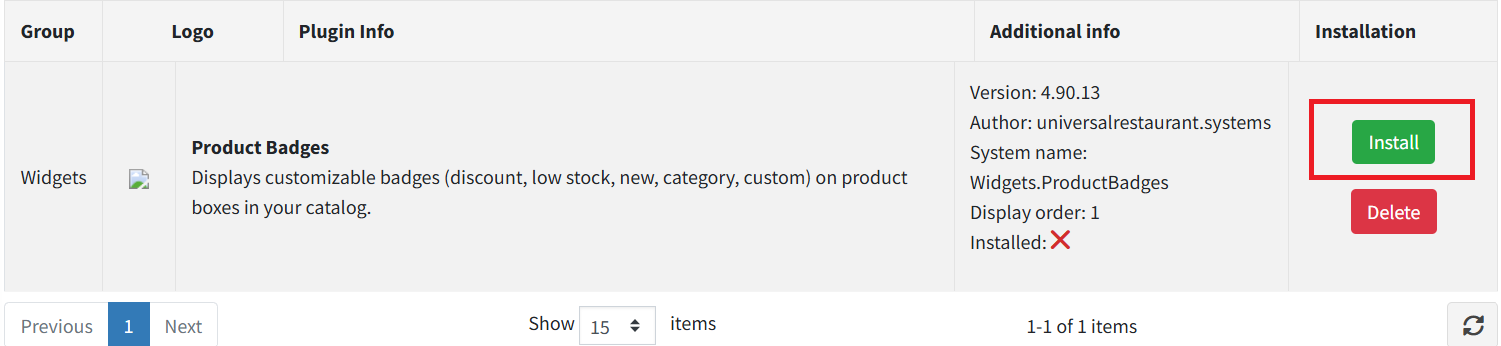
-
Activate the plugin
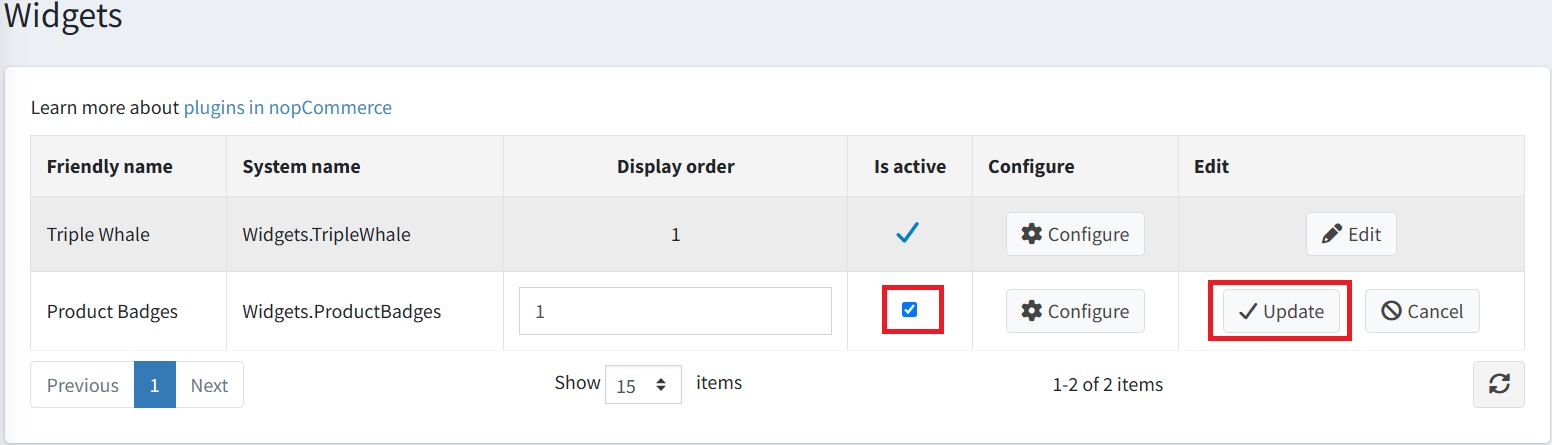
Open
Configuration → Widgets, find “Product Badges” and make sure it is active.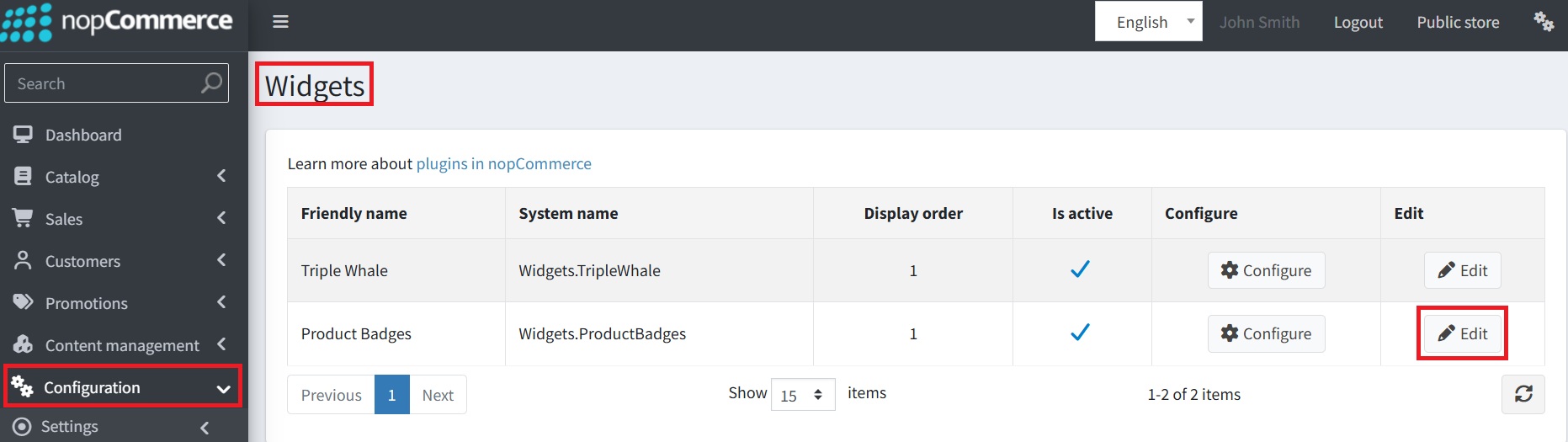
-
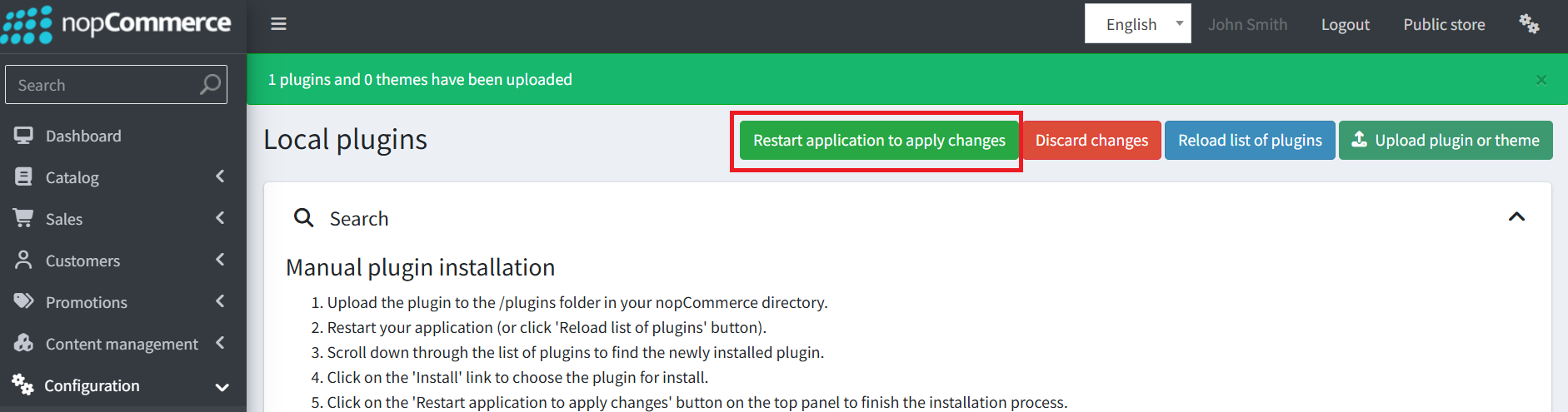
Restart the application
Restart the app once so the plugin loads correctly.
-
Create your first badge
Go to
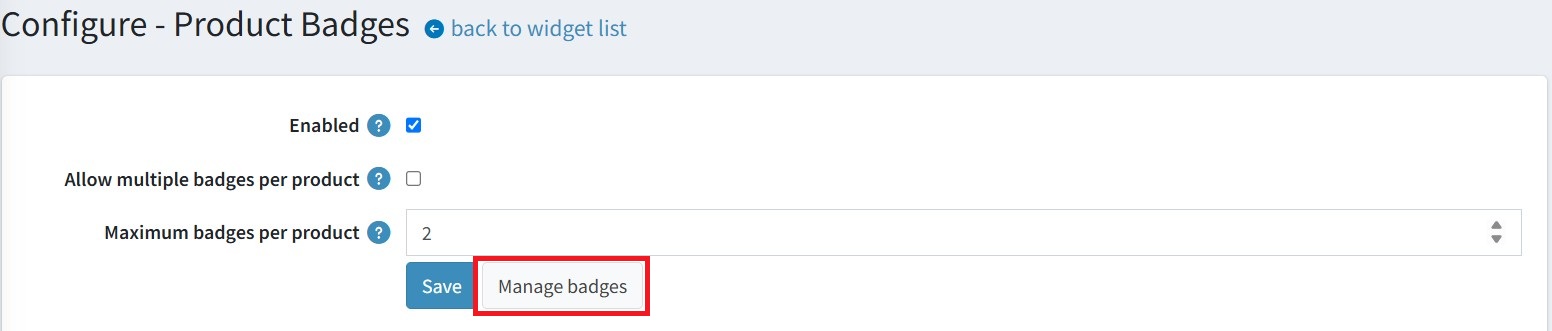
Configuration → Widgetsand pressConfigurenext to “Product Badges”, then pressManage badges → Add new badge.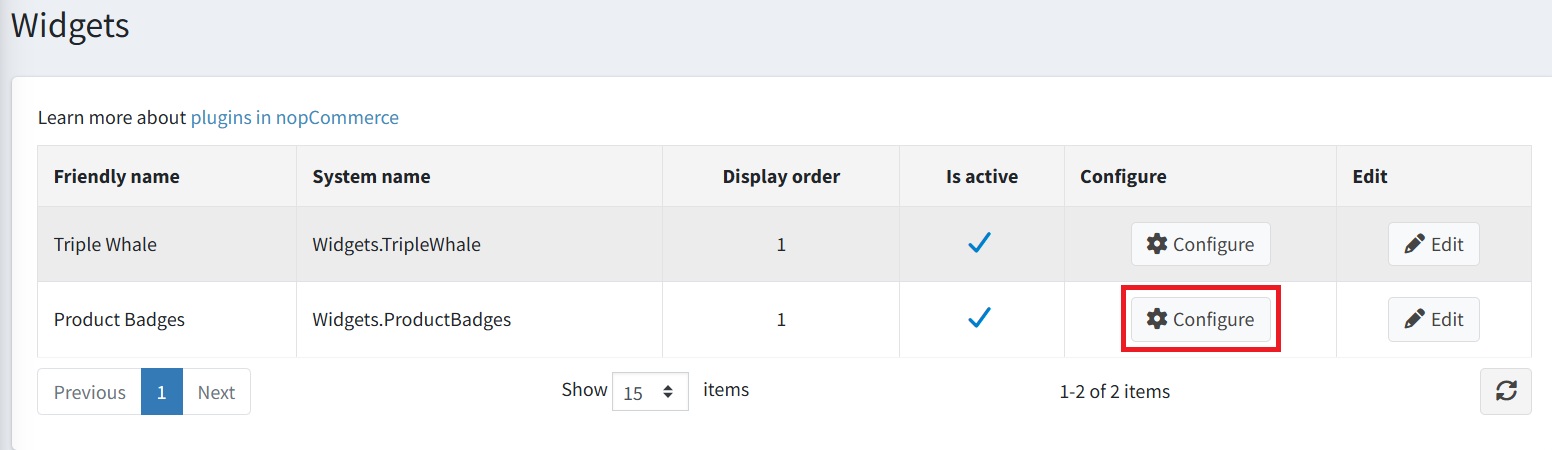

Badge types
Each badge has a type that determines how and when it appears on a product.
| Type | How it's applied |
|---|---|
| Discount (-X%) | Automatic. Appears when the product has an active nopCommerce discount applied (Promotions → Discounts, assigned to products). The label shows the computed percentage (e.g. -30%). |
| Low stock | Automatic. Appears when the product's stock quantity is ≤ the threshold you set. The label always shows “Only X left”. |
| New product | Automatic. Appears when the product has “Mark as new” ticked on the product edit page. |
| Category | Automatic. Appears on all products in the selected categories. |
| Manufacturer (brand) | Automatic. Appears on all products of the selected manufacturers. |
| Custom (manual) | Manual. Assign it per product (product edit → “Product Badges” tab) or in bulk (product list → “Assign badge”). |
Setting up each badge type
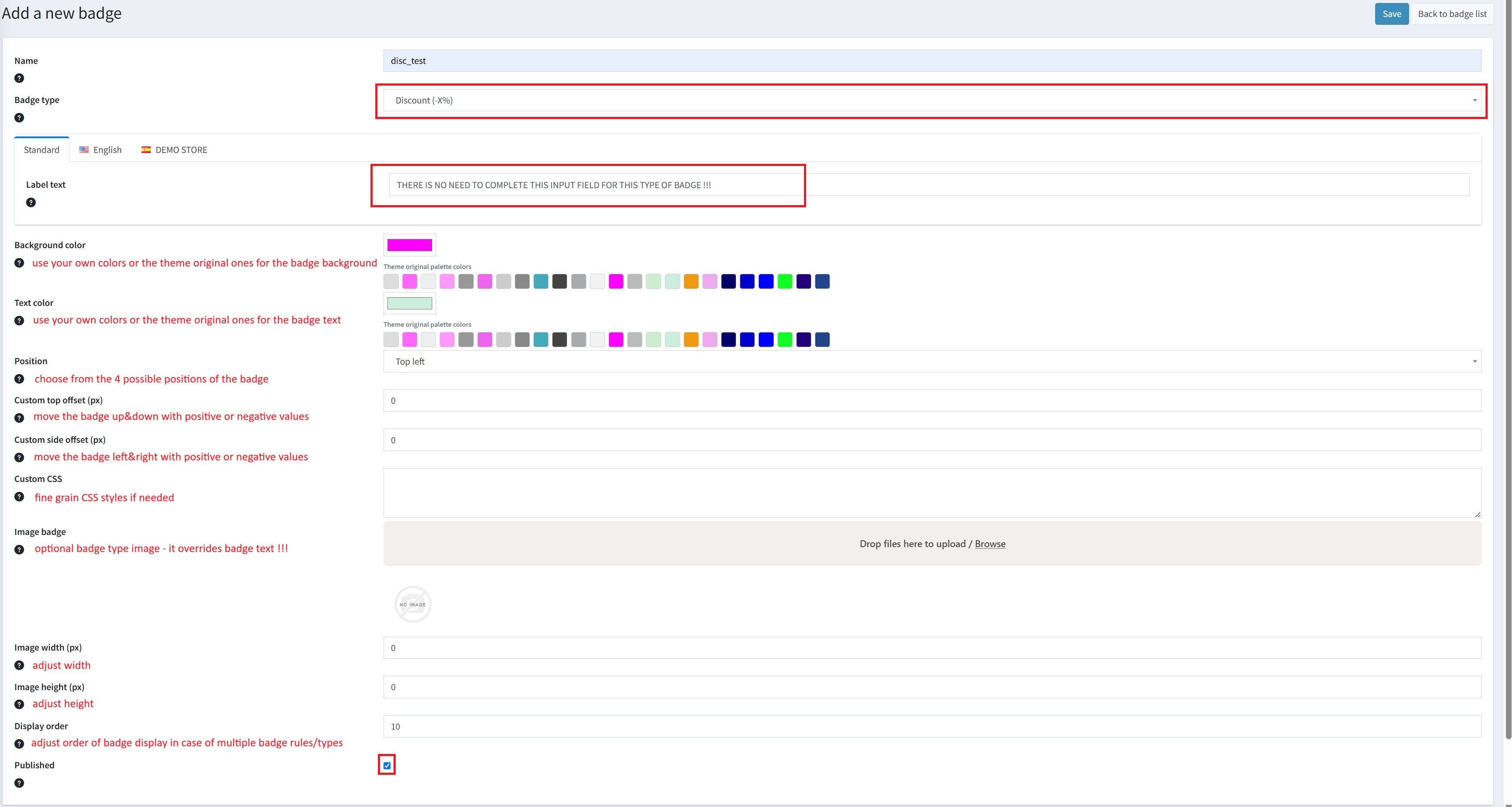
Create a badge from Configuration → Widgets → Product Badges → Manage badges → Add new badge, pick the type, then follow the steps below. The form shows the fields for the selected type automatically. Each badge type also needs a small setup step in the store itself.
Discount (-X%)
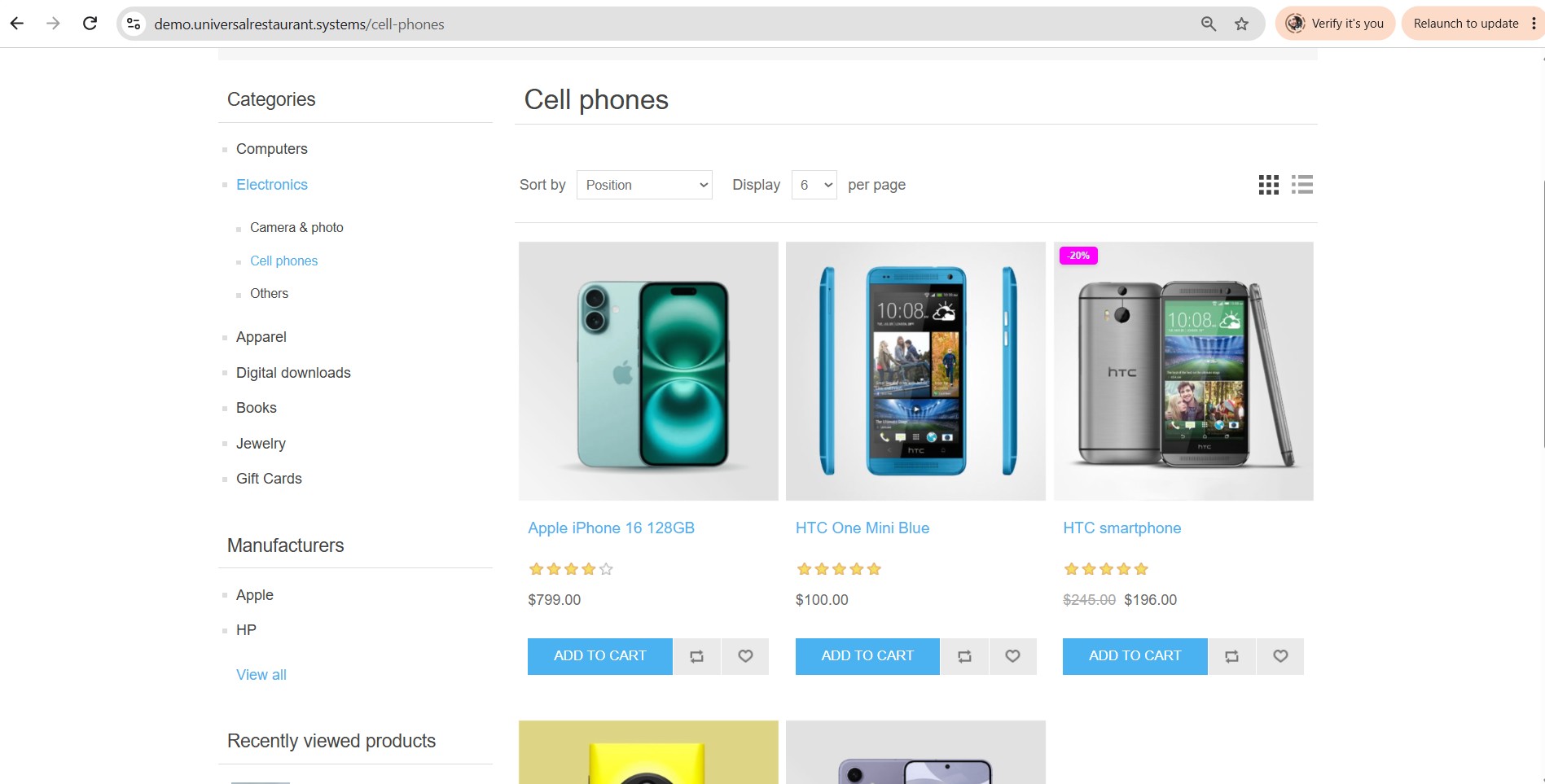
Automatic. The badge appears on products that have an active nopCommerce discount applied. The text (-X%) is computed automatically from the discount percentage.
Create the discount
Go to
Promotions → Discounts → Add new, choose Use percentage and set the Discount percentage. Leave Requires coupon code unchecked and keep it active.Apply it to products
Scroll down to Applied to products, add your product(s) and Save.
Attach it on the product
Go to
Catalog → Products, open your product, find the Discounts section, apply the discount and Save.Create the badge
Add a badge of type Discount and publish it.
Low stock
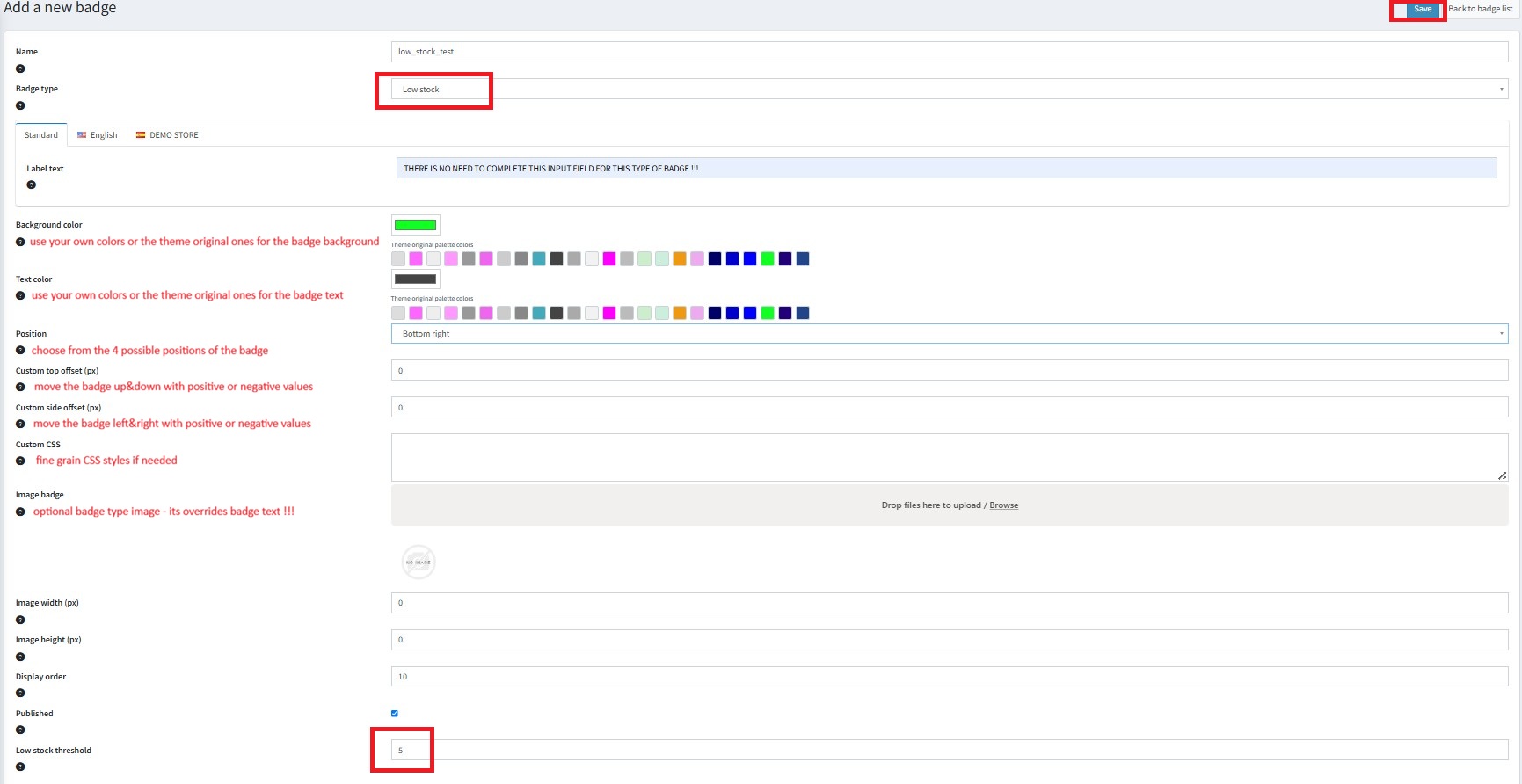
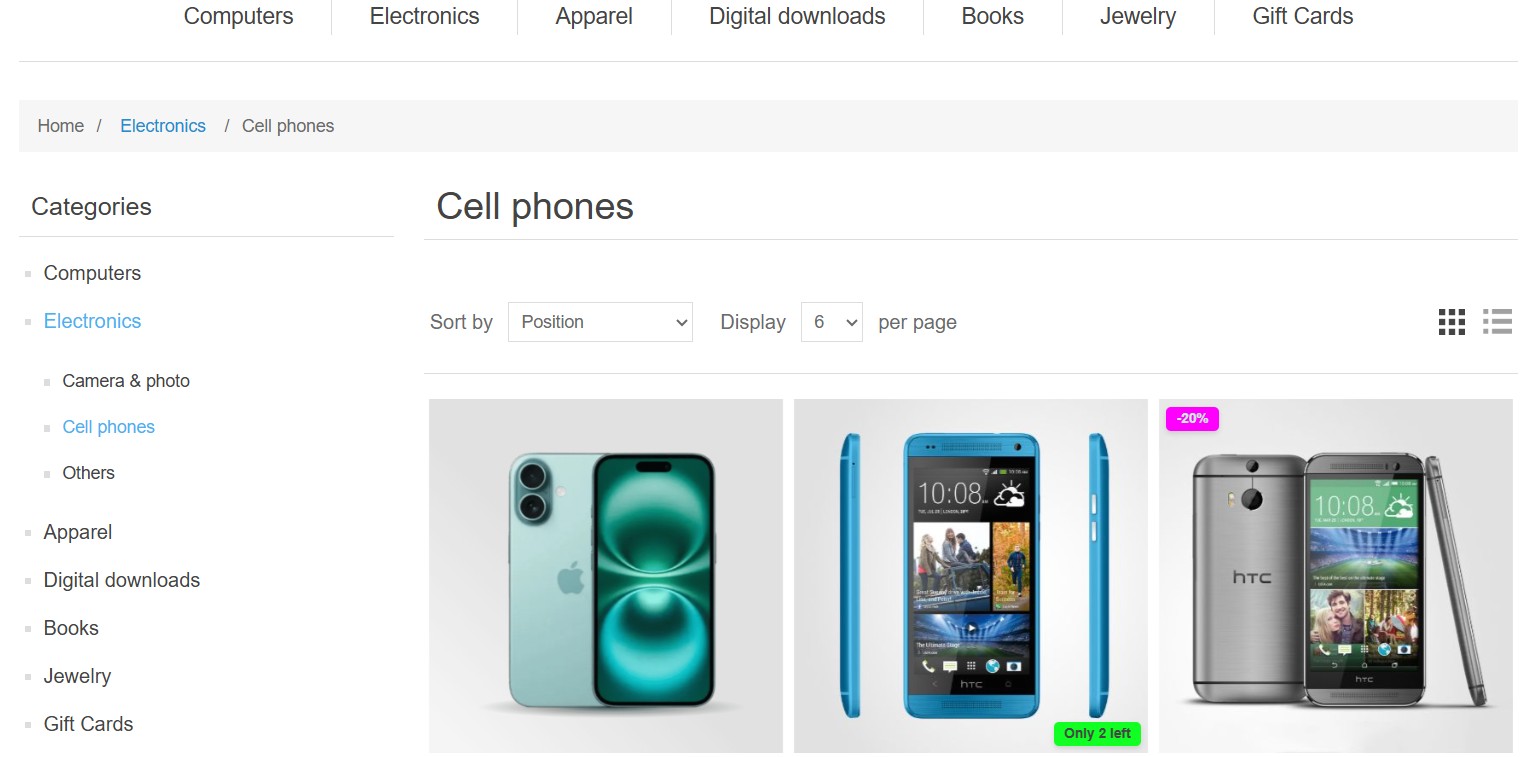
Automatic. The badge appears when a product's stock quantity is less than or equal to the Low stock threshold. The text (Only X left) is generated automatically.
Set the badge threshold
In the badge's Low stock threshold field, enter the stock number that triggers the badge.
Set the product stock
Edit the product, set its Stock quantity to a value equal to or below that threshold, then Save.
New product
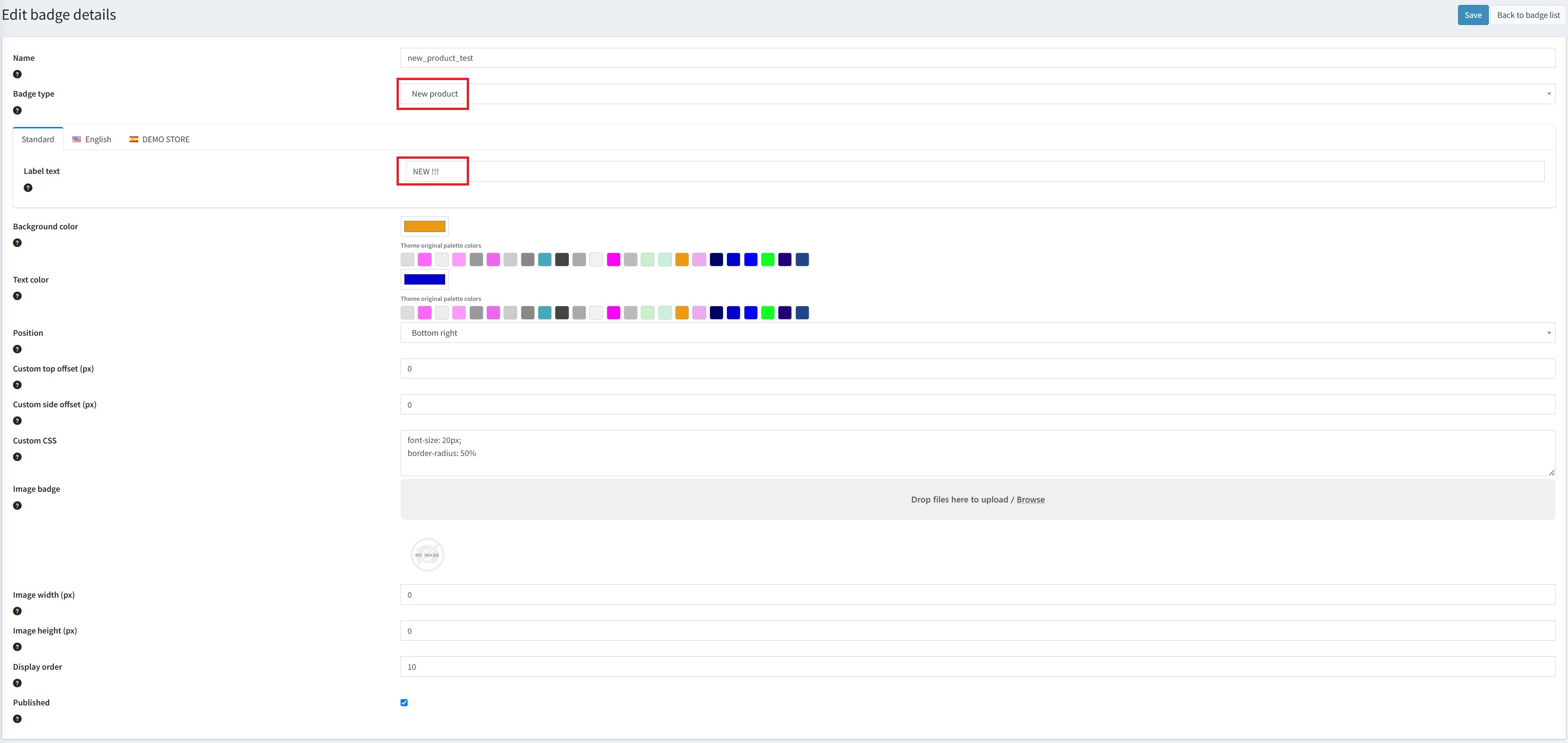
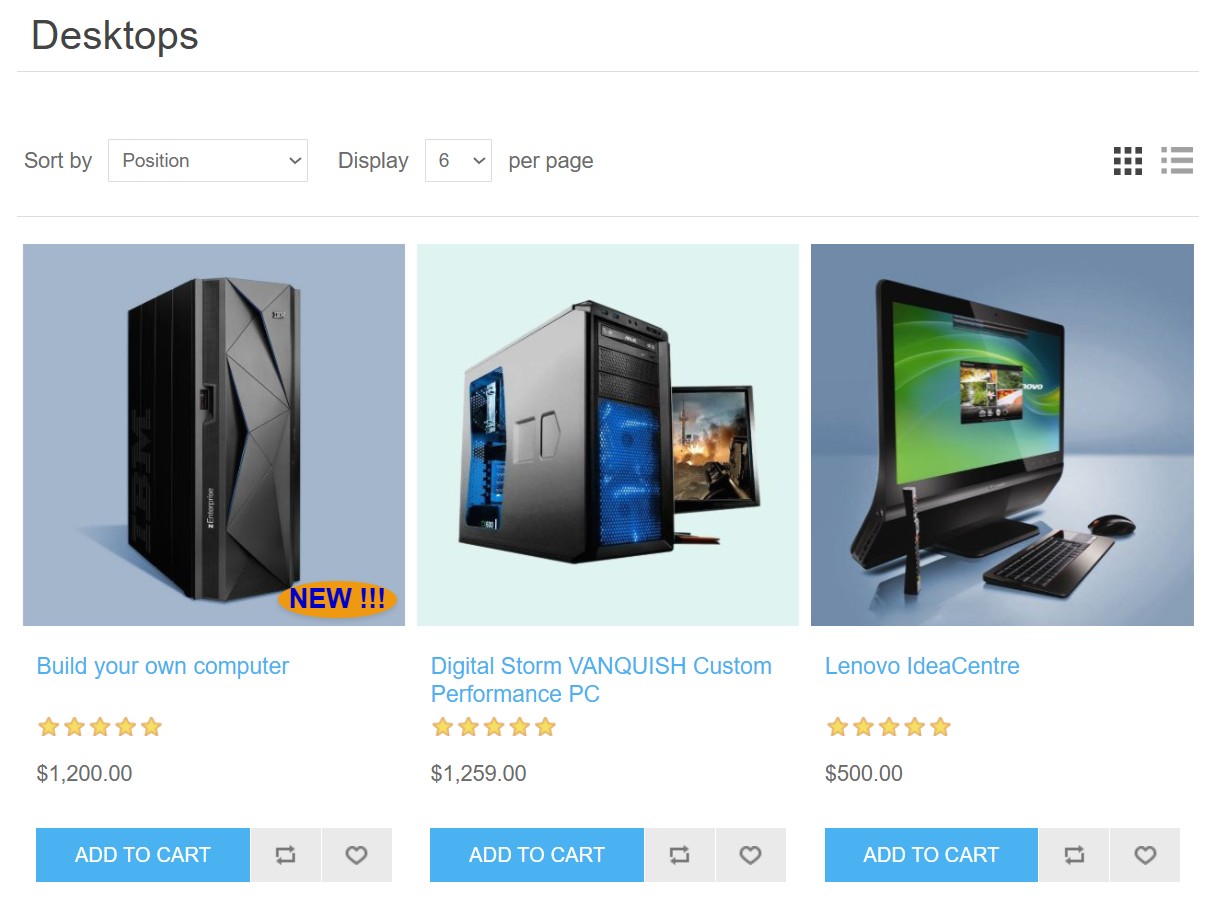
Automatic. The badge appears on products with “Mark as new” ticked.
Create the badge
Add a badge of type New product and publish it.
Mark the product as new
Edit the product, tick Mark as new, optionally set the start/end dates, then Save.
Category
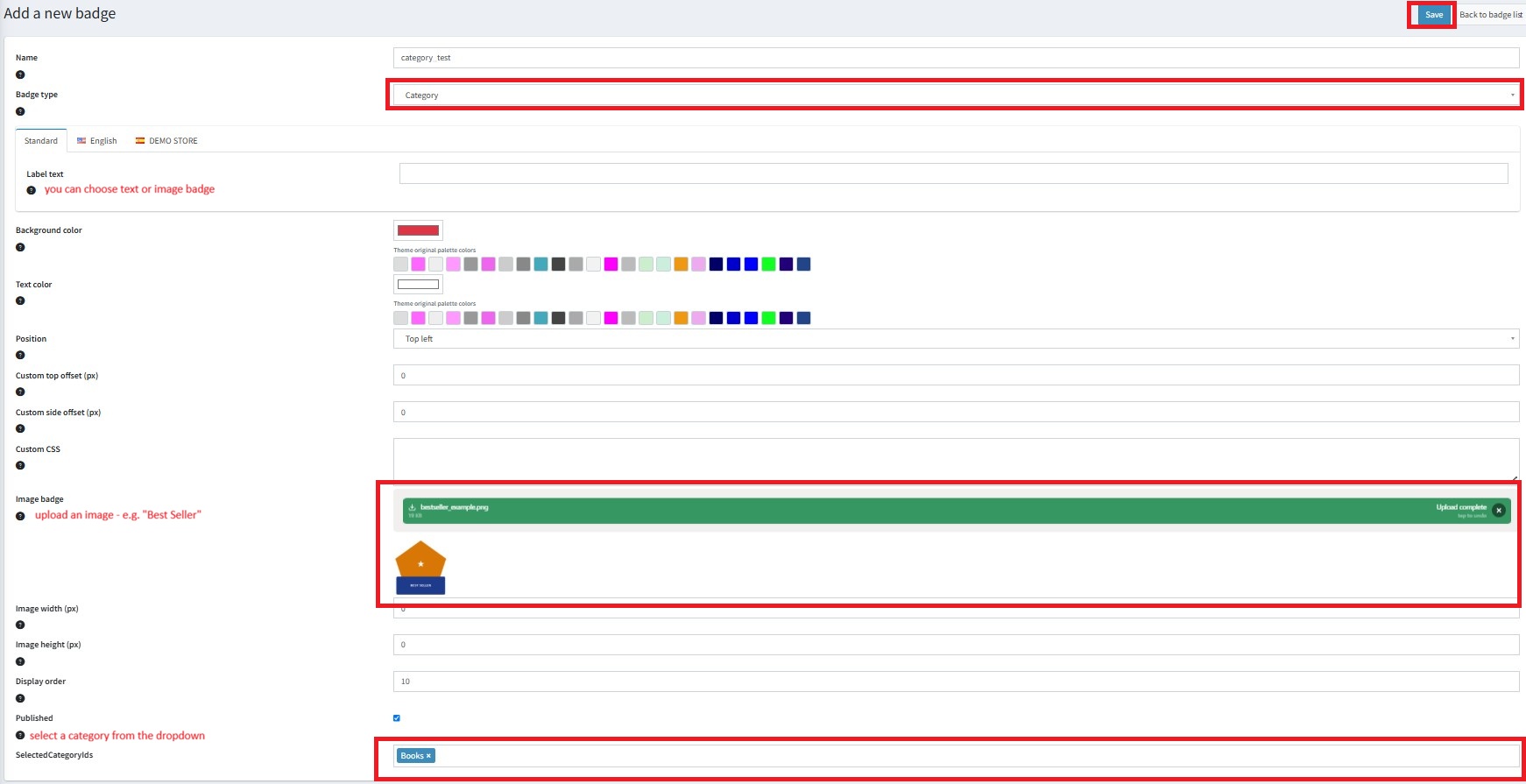
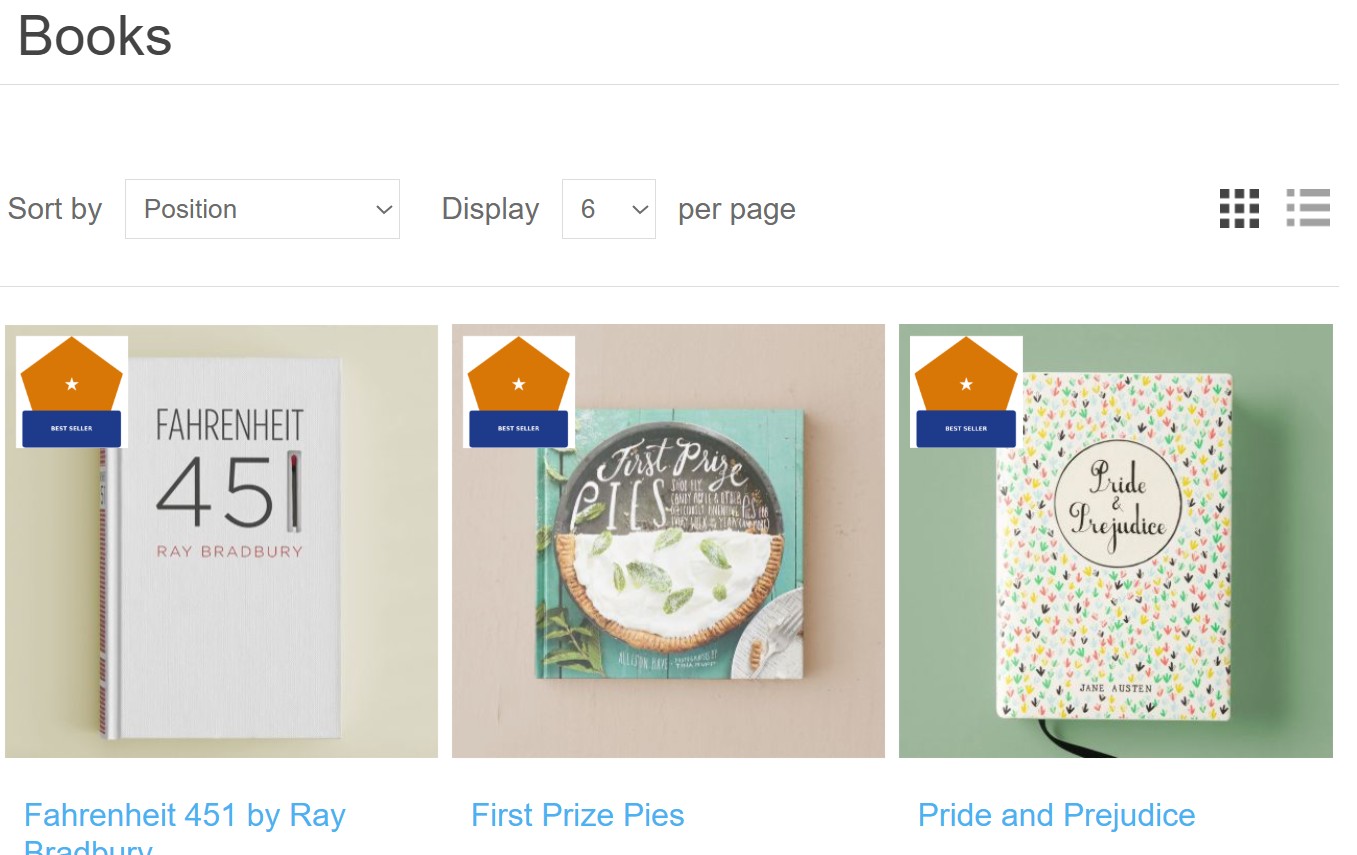
Automatic. The badge appears on all products in the selected categories.
Make sure the product has a category
The product must belong to a category (
Catalog → Categories).Assign categories to the badge
In the badge's Selected categories field, choose one or more categories and save.
Manufacturer (brand)
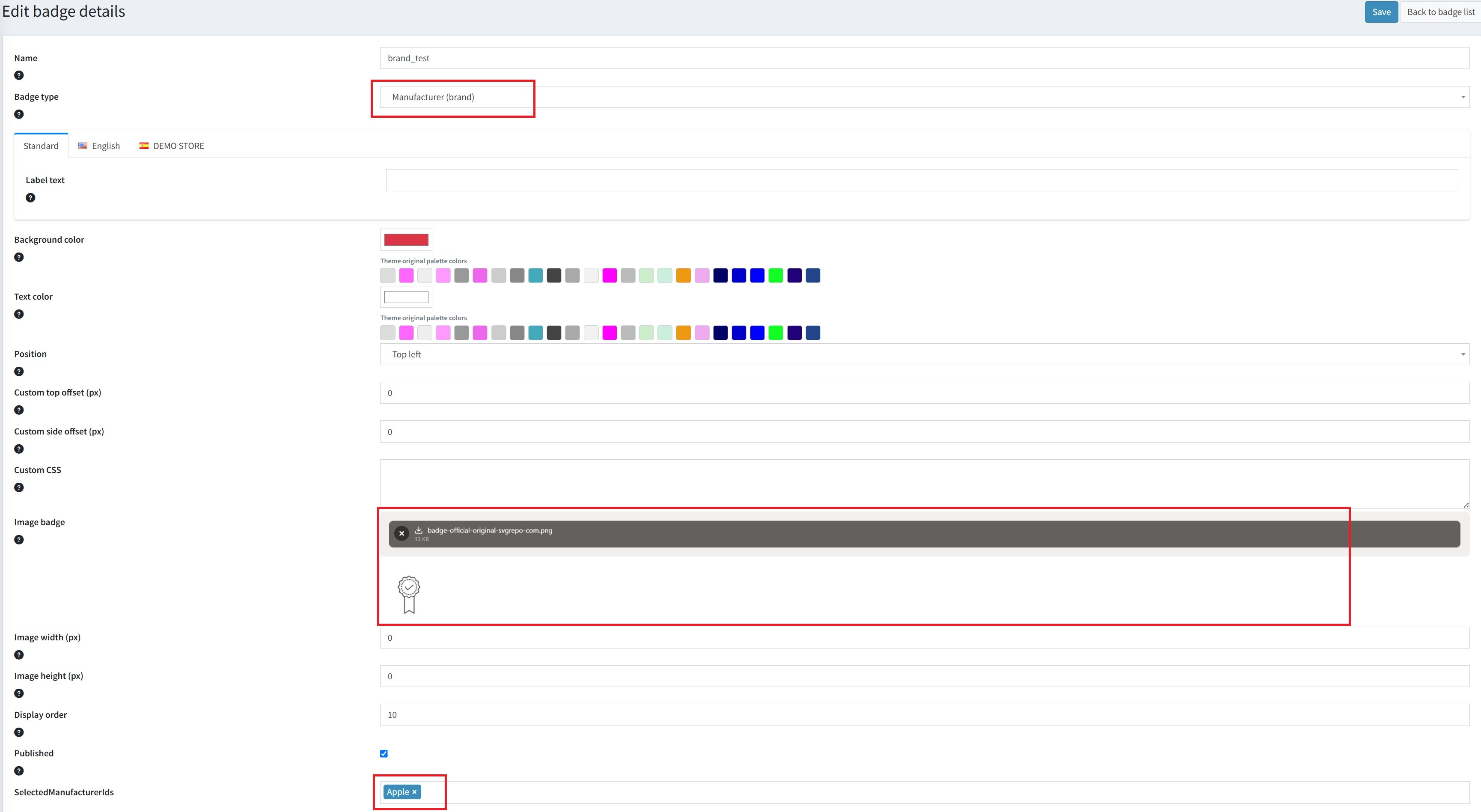
Automatic. The badge appears on all products of the selected manufacturers.
Set the product's manufacturer
Edit the product, go to the Manufacturers section, add the manufacturer and Save.
Assign manufacturers to the badge
In the badge's Selected manufacturers field, choose one or more manufacturers and save.
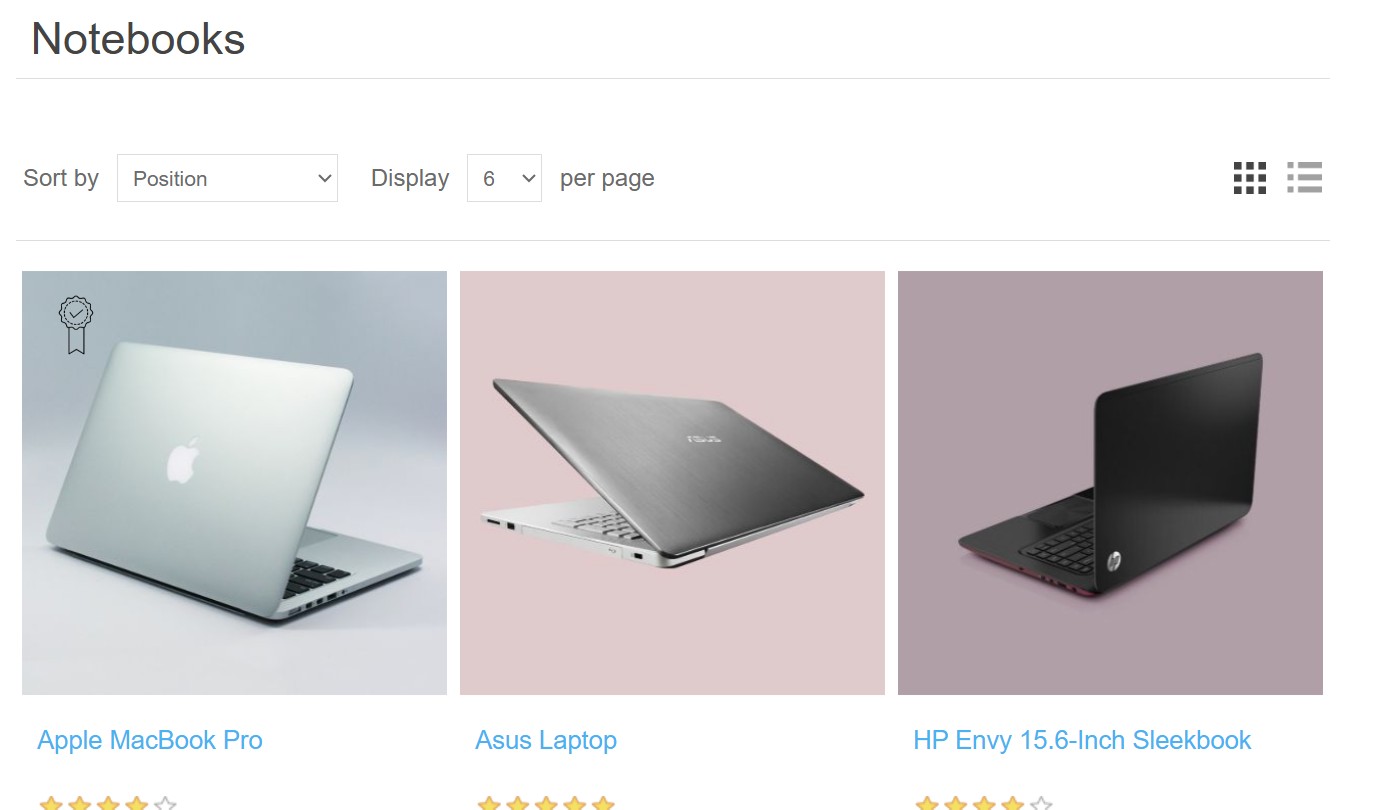
Custom (manual)
Manual. The badge appears only on products you assign it to.
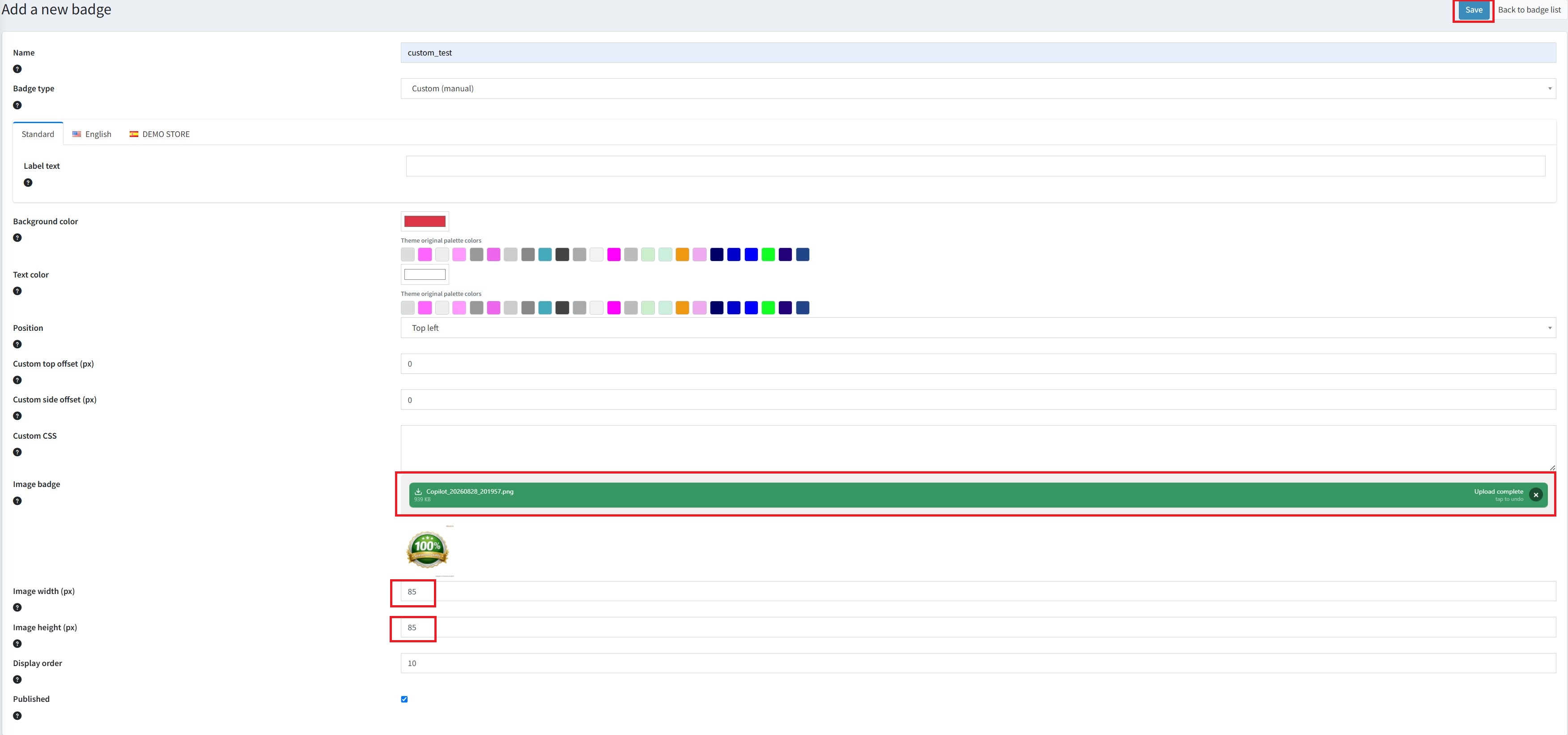
Create the badge
Add a badge of type Custom and publish it.
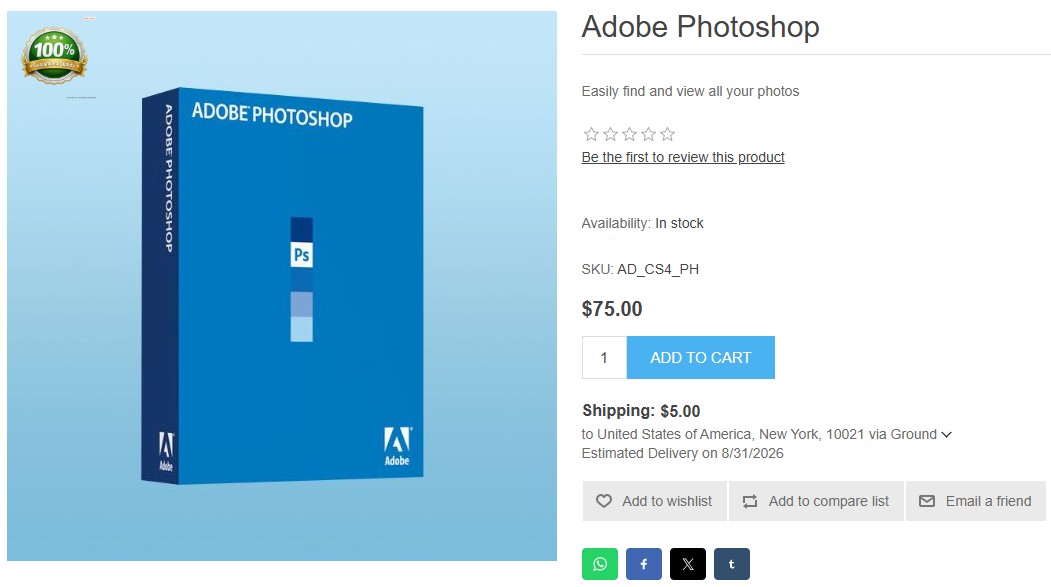
Assign per product
Edit a product, open the Product Badges tab, tick the custom badge and Save (save the tab, then save the product).
Or assign in bulk
On the product list, select several products, press Assign badge, choose the badge and confirm.
Multiple badges per product
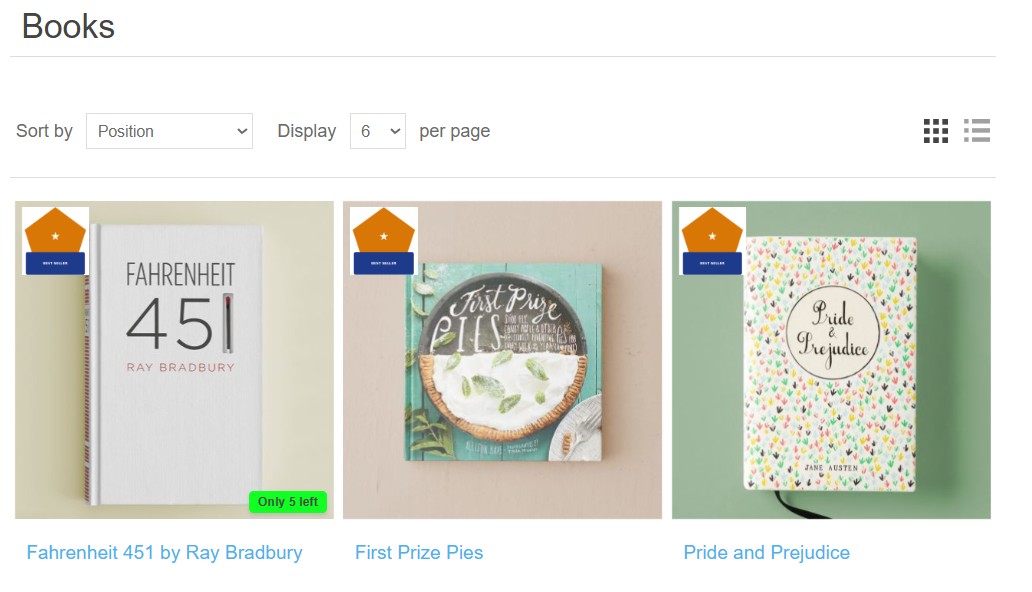
You can show more than one badge on the same product. In the plugin configuration, enable Allow multiple badges and set Max badges per product.

Important notes
Label text field is not used — the badge always shows a dynamic “Only X left” message, where X is the product's current stock quantity. To change the wording, edit the string resource Plugins.Widgets.ProductBadges.LowStockLabel in Configuration → Languages → String resources (default value: Only {0} left).
Image badge field, the badge is rendered as that image instead of the text label (and colors). The text is still used as the image's alt text.
Configuration → Settings → Media settings (it is disabled by default). There is no pixel dimension limit — any size is accepted, and you control the display size with the Image width / Image height fields on the badge (default 60px wide, height auto). Uploads are limited by nopCommerce's “Maximum image size” setting (default 1980 KB); larger images are automatically resized.
Configuration options
| Option | Description |
|---|---|
| Name | Internal name shown in the admin list. |
| Badge type | Determines the rule used to show the badge (see above). |
| Label text | The text shown on the badge. Ignored for Discount and Low stock — those generate the text automatically. |
| Background color / Text color | Colors for text badges. |
| Image badge | Upload an image to render the badge as an image instead of text. |
| Position | Which corner of the product image the badge appears in. |
| Display order | Lower value = higher priority when multiple badges match. |
| Published | Unpublished badges are never displayed. |
Troubleshooting
Configuration → Widgets), at least one badge is Published, and the products match the badge's rule.